Product
Manage your Upnova offers from Claude, ChatGPT, and Cursor | Upnova MCP
Upnova now has an MCP server at mcp.upnova.io. Connect your AI assistant directly to your store and manage upsell offers, widgets, and products using natural language.
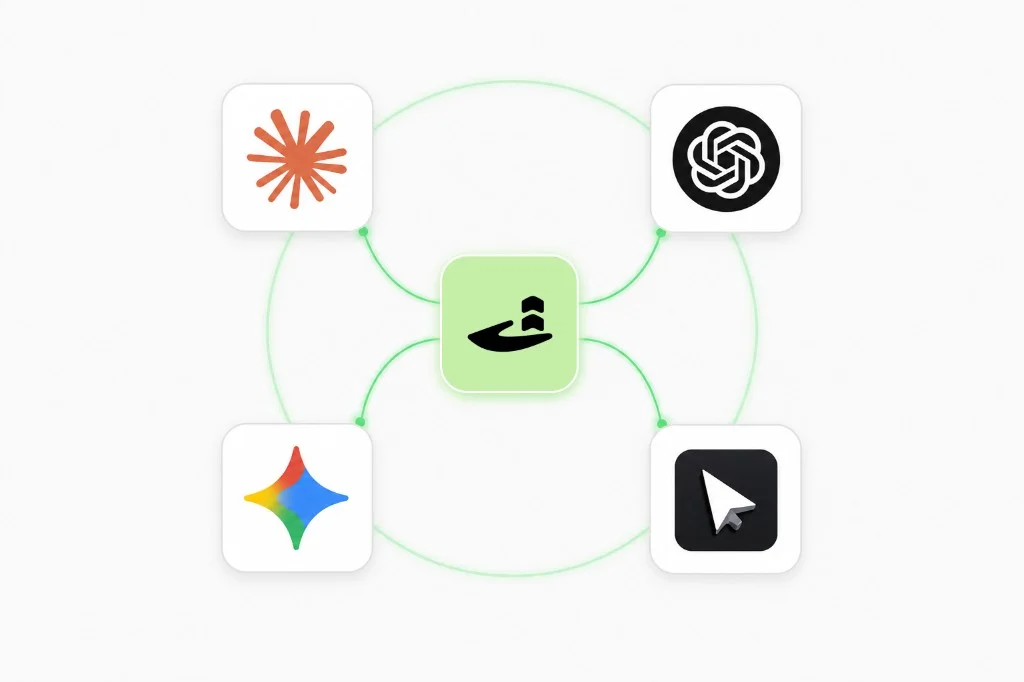
Most Upnova work follows the same pattern. You think of the offer while doing something else, you open another browser tab, you find the right discount type, you fill in the form. Ten minutes later you are back where you started.
Upnova now has an MCP server. You can connect Claude, ChatGPT, Cursor, or any MCP-compatible AI assistant directly to your store and manage your upsell setup without leaving whatever you were already working in.
What MCP is (and why it matters here)
MCP (Model Context Protocol) is an open standard that lets AI assistants connect to external tools. Instead of copying data from your dashboard into a prompt, the AI can read and write to Upnova directly.
For Upnova merchants, that means you can ask your AI assistant to look up your active offers, create a new one, or check which widgets are drafts, and it does it using your actual store data.
What you can do with it
The Upnova MCP server gives your AI assistant access to:
- Your store overview: plan, active widget count, current offers
- All offers: free gift, buy-x-get-y, order volume, product volume, bundle builder (by status: active, draft, expired)
- All widgets: cart, PDP, popup, cross-sell widgets with their types and statuses
- Available templates: browse what you can build before creating
- Products and collections: searchable, paginated, so the AI can reference real SKUs
- Offer and widget creation: create free gift, buy-x-get-y, order volume, product volume, and bundle builder offers; create new widgets
"Show me all my active upsell offers"

"Create a free gift offer for orders over $75 —
 use the product with handle 'gift-bag-classic'"

"Set up a bundle builder for my protein powder collection"

"Which of my cart widgets are still in draft?"
The AI uses your live store data. It is not guessing based on what you describe; it is reading from your Upnova account.
How authentication works
Connecting is OAuth 2.1 with PKCE, and there is no setup step anymore. There is no email to wait for, and no owner-only toggle to enable first — anyone with access to your Upnova admin app can connect in under a minute:
- Start the connection from your AI tool (it opens
https://mcp.upnova.io/authorize), or go there directly - Enter your Shopify store domain (e.g.
yourstore.myshopify.com) - Open your store’s Shopify admin and go to Apps → upnova → MCP
- Your live one-time connection code is displayed right there in the Claude / Remote MCP Access card — no email, no inbox to check
- Copy the code back into the mcp.upnova.io page and confirm
The code is only ever shown inside your already-authenticated Shopify admin session, so anyone who can open your Upnova app can retrieve it — there’s no separate email verification step to manage or get stuck on.
The token lives in your AI tool’s credential store. You authorize once and it persists across sessions.
How to connect
Claude (Anthropic)
- Go to Claude.ai and open Settings → Connectors (or Customize → Connectors in the chat interface)
- Click Add custom connector
- Enter the MCP URL:
https://mcp.upnova.io/mcp - Claude will open the Upnova authorization page in a new tab
- Enter your Shopify store domain (e.g.
yourstore.myshopify.com) - Open your store’s Shopify admin, go to Apps → upnova → Settings → API Keys, and copy the live code shown there
- Paste the code into the Claude authorization page
- Done. The Upnova tools will appear in Claude’s tool list
If you use Claude Projects, add the MCP server at the project level so Upnova context is available in every conversation in that project.
ChatGPT (OpenAI)
- Open ChatGPT and go to Settings
- Navigate to Connectors (available in the ChatGPT desktop app and on chatgpt.com for Plus/Pro users)
- Click Add connector and enter:
https://mcp.upnova.io/mcp - Complete the OAuth flow: enter your store domain, then copy the live code from Apps → upnova → Settings → API Keys in your Shopify admin and paste it in
Cursor IDE
- Open Cursor and go to Settings (Cmd+Shift+P, then “Cursor Settings”)
- Navigate to Features and then MCP Servers
- Click Add new MCP server
- Name:
Upnova, URL:https://mcp.upnova.io/mcp - Complete the OAuth authorization when prompted
Cursor is particularly useful if you use it as a combined coding and store management environment. You can reference your product catalog inline while building custom storefront code.
Windsurf, Continue, and other MCP tools
Any tool that supports remote OAuth 2.1 MCP servers works. Add https://mcp.upnova.io/mcp as the server URL and complete the standard OAuth flow. The server follows the MCP spec, so there are no custom steps.
A few practical notes
The MCP server connects to your production Upnova data. Offer creation through the AI goes through the same validation as the admin: required fields are enforced, and the offer is created in draft by default so you can review before activating.
The AI can read everything the MCP exposes. It cannot access billing settings, other merchants’ data, or perform destructive actions (delete, archive) in this version.
If you use multiple stores, you will authorize separately for each. Each token is scoped to one store.
Get started
If you are already on Upnova, connect the MCP server from whichever AI tool you use most. Claude has the most capable connector support right now given Claude’s tool-use quality, but the server works with any MCP-compatible client.
If you are not yet using Upnova, start with a free trial and connect the MCP server once your first offer is live.
The server is at https://mcp.upnova.io/mcp. Questions? Reach out at [email protected].

14-day AOV growth guarantee
Ready to test your Shopify store offer for Black Friday?
Built from your store's data.
Read next
More from the blog
-
 Growth
 3 BFCM Offer Types That Grow Your Average Order Value, Not Decrease It
The three data-driven upsell offers Shopify merchants run for Black Friday: free gift tiers, a bundle builder, and an order-volume progress bar.
Read more - Guide
Best Shopify Upsell Apps for 2026, Ranked by AOV Impact
We ranked 13 Shopify upsell apps by verified AOV impact, not install counts. Find the right app for your funnel leak: PDP bundles, cart drawer, or post-purchase.
Read more -
 Product
 Introducing Popup Upsell
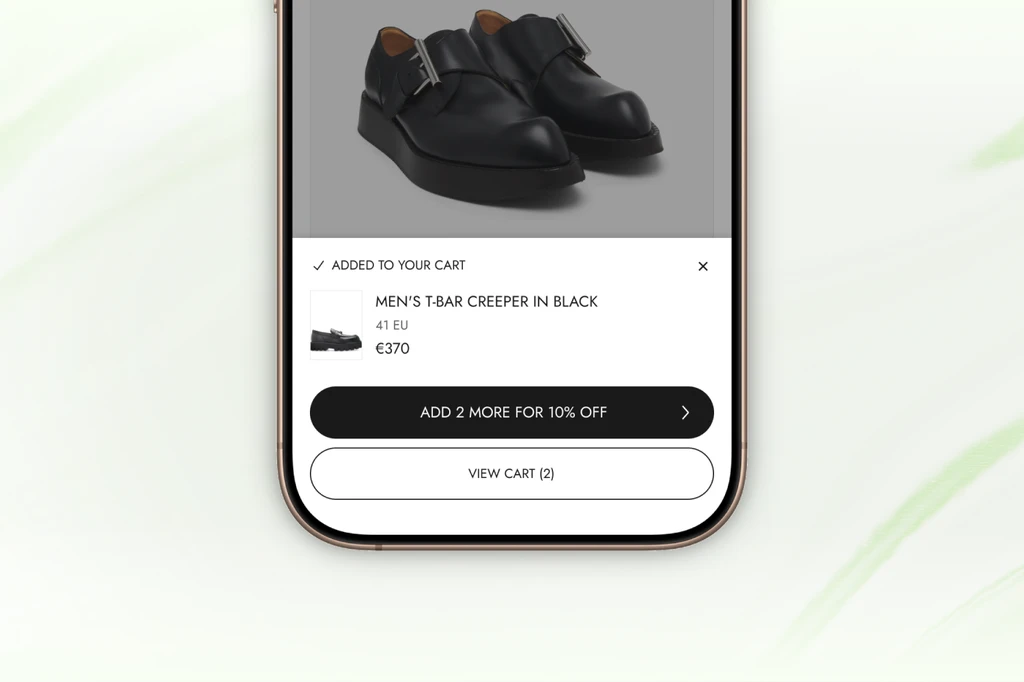
The moment a shopper adds to cart is the highest intent they'll ever have. Popup Upsell captures it and turns single-item orders into bigger baskets, without sending shoppers anywhere.
Read more