
4 steps to do to boost your conversion rate
Enable the right settings, add social proof, and watch cart abandonment drop.
1. Make sure to enable Upnova in your cart
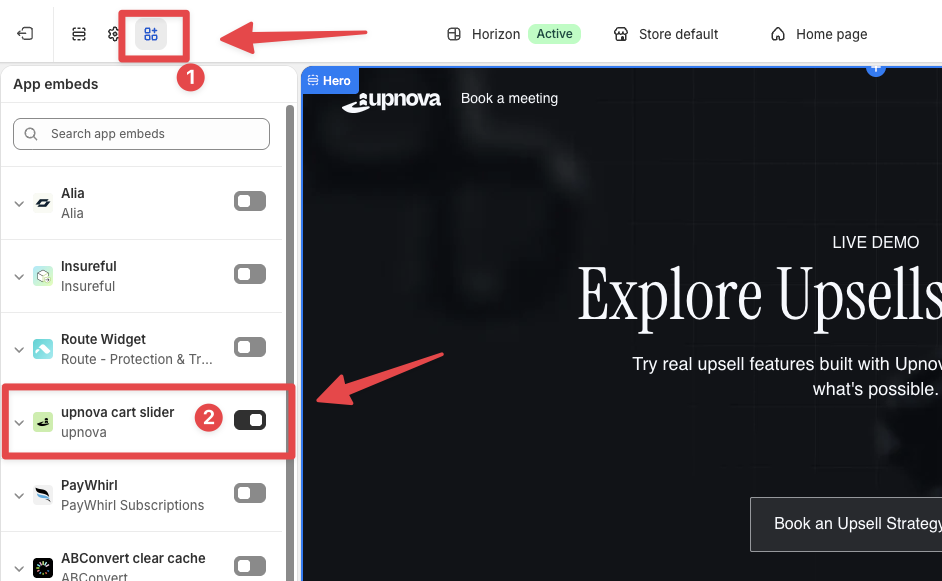
Before anything else, confirm Upnova is actually active in your theme.
Go to Shopify Admin → Online Store → Themes → Customize → App Embeds, switch on Upnova, and hit Save.
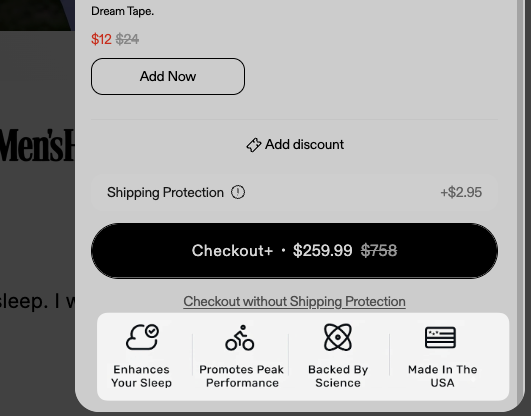
2. Add trust badges below the checkout button
Shoppers hesitate at checkout when they are not sure you are a real, trustworthy brand. A row of trust badges right below the checkout button removes that hesitation.
Generate your trust badge image
You can create a badge strip in seconds with ChatGPT or Gemini. Use a prompt like this:
Generate an image with a 5:1 aspect ratio. Show 4 trust badges with these labels:
Enhance Your Sleep
Promote Peak Performance
Backed by Science
Made in the USA

Each badge should have a simple black illustration icon.
Transparent background. Keep text small and consistent in size.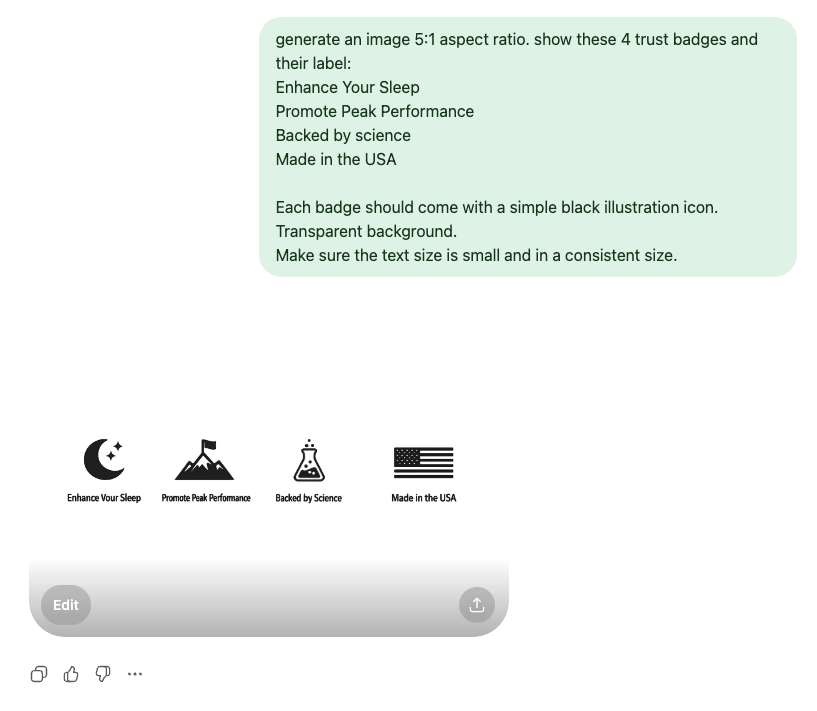
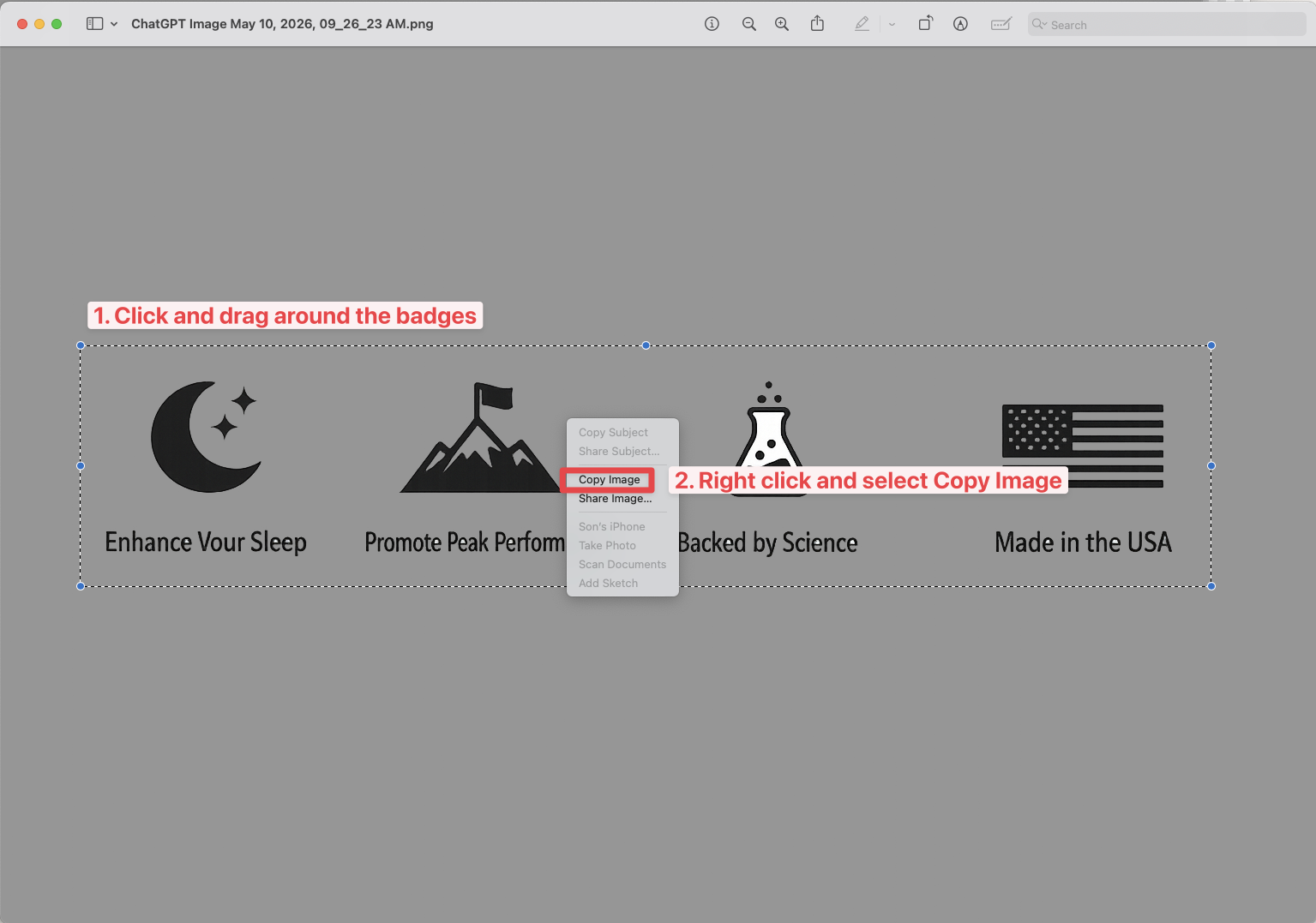
The ratio won’t be perfect, that’s fine. Crop the image around the badges:
- Open the downloaded image
- Select the area around the badges
- Right-click the selection → Copy Image
Paste it into Upnova
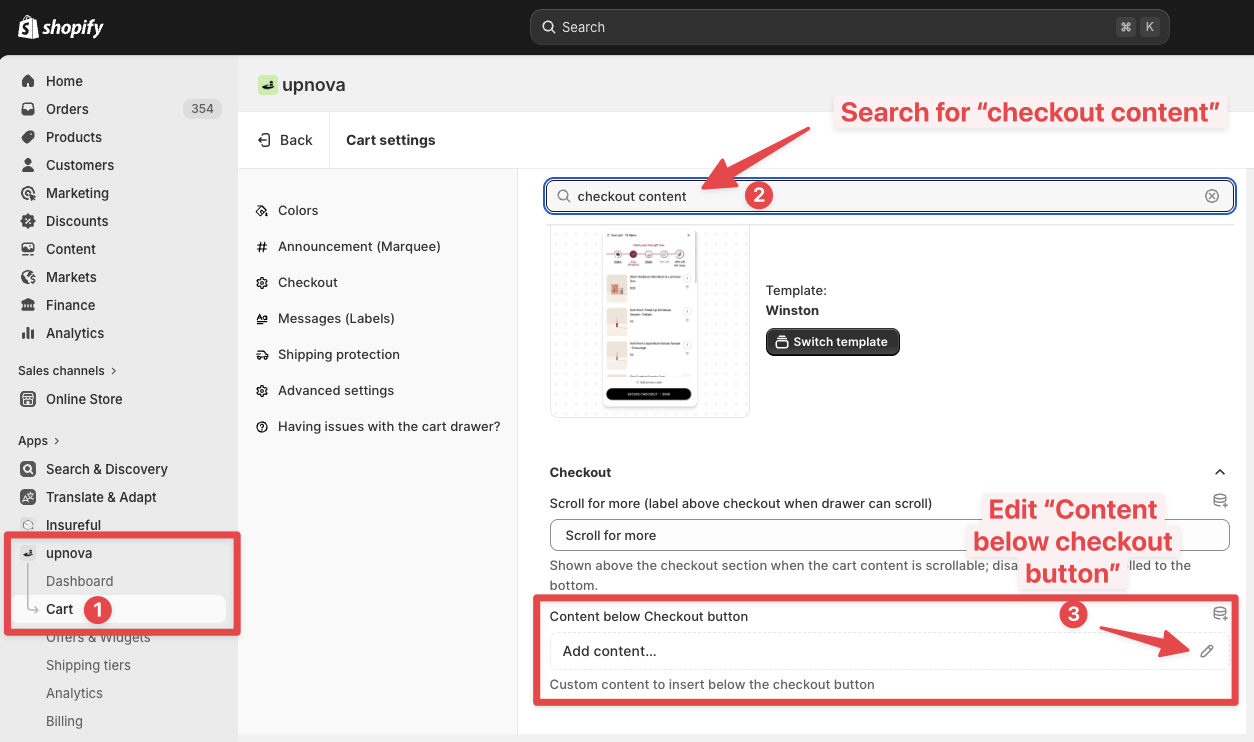
- Go to Upnova → Cart settings
- Search for “checkout content”
- Click “Content below Checkout button”
- Paste the image (
Ctrl/Cmd + V, or right-click → Paste) into the edit box
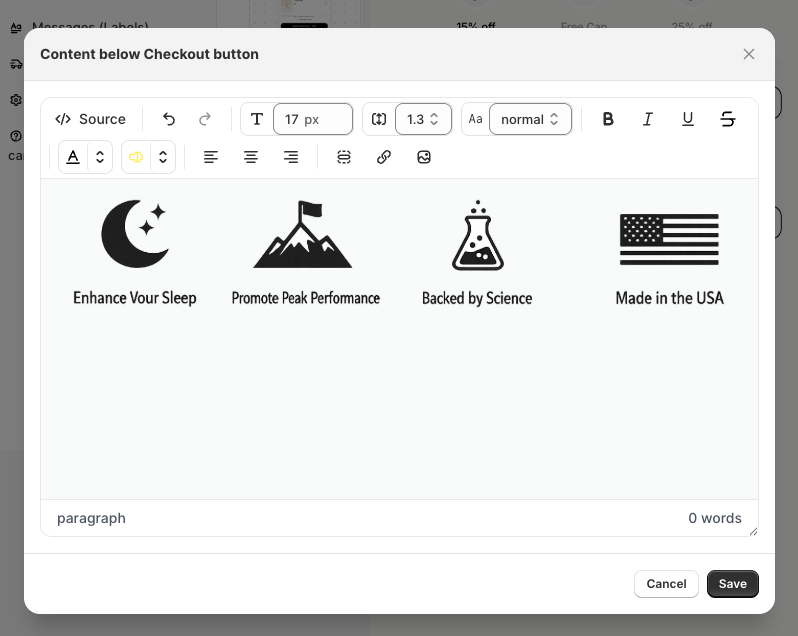
- Save the field, then save the cart.
Your Conversion Rate just received a boost 🎉
3. Add UGC testimonial videos in the cart
Put customer video testimonials directly in the cart. This works because the cart is where the majority of shoppers abandon checkout, social proof at that moment builds the trust needed to complete the purchase.
Here is how to do that in Upnova:
Your customers now trust you more 🎉
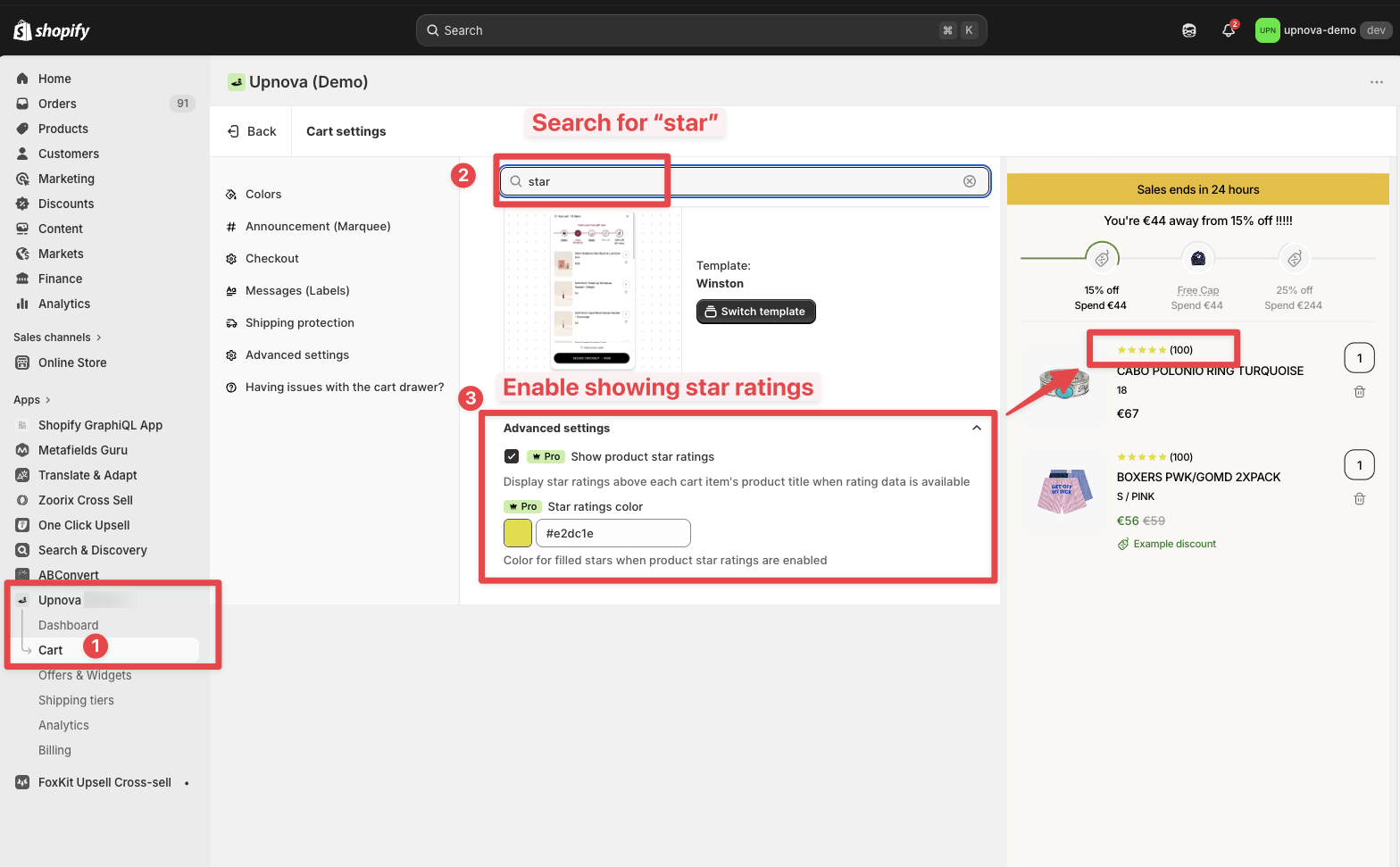
4. Show product star ratings in the cart
If you have reviews, show them. Displaying star ratings next to products in the cart reinforces the purchase decision right where shoppers are most likely to second-guess themselves.
- Go to Upnova → Cart
- Search for “Star”
- Enable “Show product star ratings”
- Click the color box to match your brand colors
- Hit Save